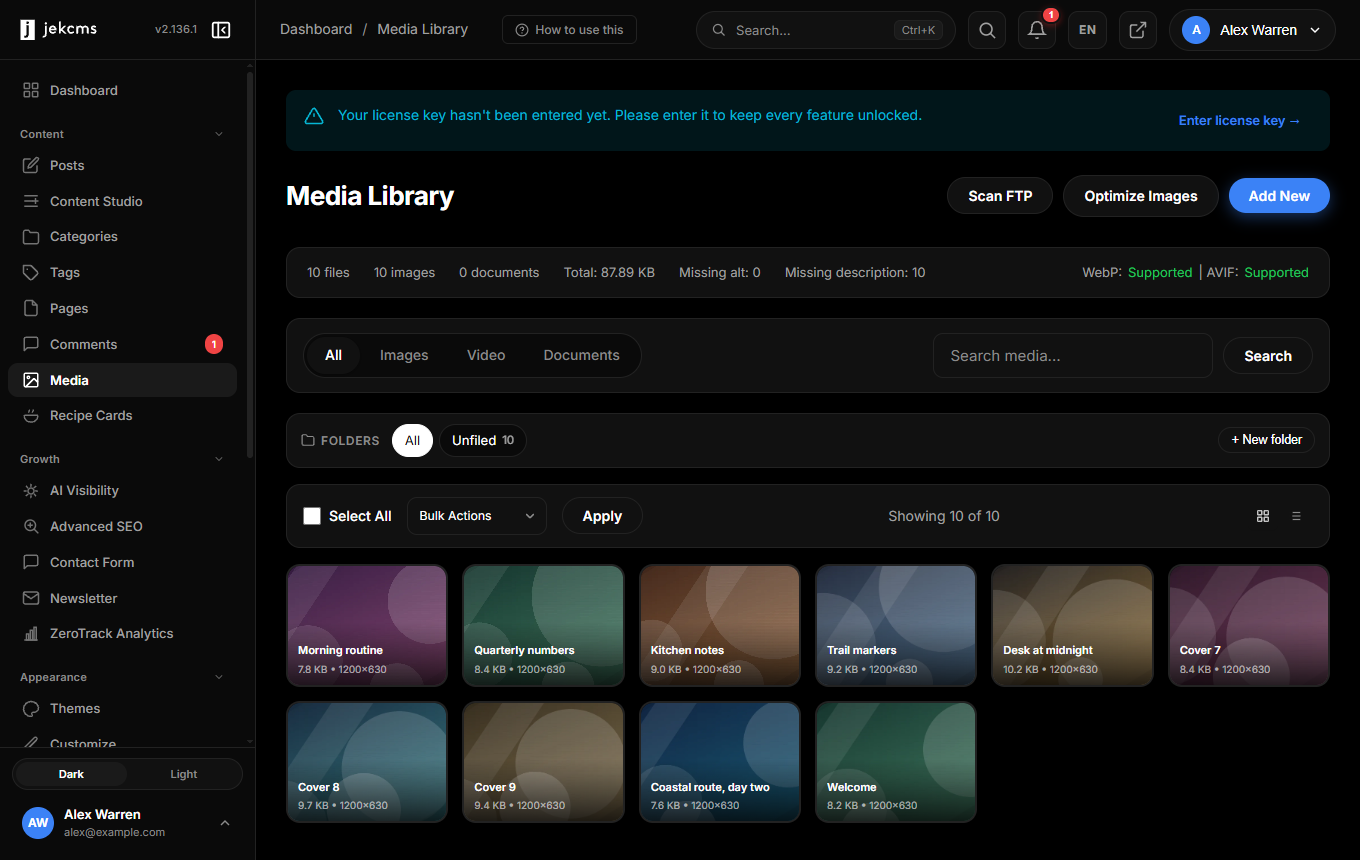
Media Library
The media library (admin/media.php) is where every image, video, PDF, and attachment on your site lives. It handles uploads, format conversion, alt text, organization, and cleanup.
Uploading
Four ways to get files in:
- Drag-drop — Drop one or many files anywhere on the panel. A progress bar tracks each file
- File picker — Click Upload to pick from your OS file dialog
- Paste —
Ctrl+Vwith an image in your clipboard uploads it directly (handy for screenshots) - Import from URL — Paste an external image URL; jekcms downloads and stores it locally
Supported formats
- Images — JPG, PNG, GIF, WebP, AVIF, SVG
- Video — MP4, WebM (stored, not transcoded)
- Documents — PDF, DOCX, XLSX, TXT, ZIP
- Audio — MP3, OGG, WAV
The global max upload size is 32 MB (change in php.ini + the Upload limit field under Settings → Performance). Files larger than the limit reject client-side before wasting bandwidth.
Automatic format generation
Every uploaded image gets three companion files generated automatically:
- AVIF — Smallest, newest format. Served to Chrome/Firefox/Safari 16+
- WebP — Mid-size, broad support. Fallback for older Safari
- Original PNG/JPG — Ultimate fallback; served to ancient browsers
The <picture> tag jekcms emits handles negotiation automatically — you never pick a format manually. Disable AVIF or WebP generation under Settings → Performance if disk space is tight (AVIF encoding is CPU-heavy on shared hosts).
Thumbnail sizes (thumb, medium, large, full) are generated for every image at upload time. Sizes are configurable under Settings → Performance → Image sizes.
Alt text
Click any image in the grid to open the detail panel. The Alt text field supports two modes:
- Manual — Type it yourself. Best quality, best SEO, accessible
- AI auto-generate — Click the sparkle icon next to the field. Uses Gemini Vision (if key configured under Settings → API Keys) to describe the image in 1–2 sentences. Review and edit before saving
Alt text is stored per-image and automatically injected into every <img> tag that references the file. Posts using the image before alt text was added don't need to be re-saved — rendering pulls alt text live.
Replacing a file in-place
Open an image's detail panel and click Replace. Upload a new file; jekcms keeps the same URL, filename, and database ID. Every post using the old image now shows the new one without any edits.
Use this for:
- Fixing a typo in an infographic
- Updating a team photo when someone joins/leaves
- Swapping placeholder art for final assets
The old file is kept for 7 days in /storage/replaced/ so you can roll back if needed.
Folder organization
The left sidebar shows a folder tree. Create folders with New Folder, drag files between folders in the grid. Folders are purely organizational — they don't affect URLs. A file in /uploads/2025/recipes/pizza.jpg is still served from whatever URL the CDN or storage layer prefers.
You can also filter by:
- Type — Images, Video, Documents, Audio
- Date — Year/month dropdown
- Unused — Files not referenced by any post (see Orphan scan below)
Bulk actions
Checkbox-select multiple files:
- Delete — Moves to trash. Actual deletion happens after 7 days
- Move to folder — Reorganize
- Regenerate thumbnails — Re-encodes every size from the original. Useful after changing image quality settings or adding new size presets
Orphan scan
Media → Tools → Orphan scan crawls every post, page, and setting value looking for media references. Files not referenced anywhere are flagged. Common orphans:
- Images uploaded during drafting and never used
- Media from deleted posts (if the post was hard-deleted, not trashed)
- Old banner art replaced during a redesign
Review the list, then bulk-delete what's truly unused. Scan runs on-demand; large libraries (10k+ files) can take a minute.
CDN offload
Under Settings → Performance → CDN you can point the media library at an S3-compatible bucket (AWS S3, Cloudflare R2, Backblaze B2). Once configured:
- New uploads go to the bucket directly
- Existing files migrate in the background (progress in the CDN panel)
- Public URLs rewrite to the CDN hostname automatically
Local copies can be deleted after migration to reclaim disk — toggle Delete local after upload in the CDN settings.
External URL references
When you Import from URL, jekcms defaults to downloading the file locally (safer, survives the source going offline). Toggle Keep as external reference at import time to instead store just the URL. External references don't get AVIF/WebP companions and can break if the source moves — only use for trusted CDNs you control.