Users & Roles
On a one-person site this screen is a formality. The moment someone else writes for you, it becomes the screen that decides what they can break.
The four roles
jekcms ships with four, and they are cumulative - each one can do everything the one below it can.
Subscriber can read, and that is the point of them. If you run a members-only tier, subscribers are your members; they have an account and an email address on file, nothing more.
Author writes and publishes, but only their own work. They can upload images and delete their own posts. They cannot touch anyone else's writing, cannot moderate comments, and cannot reach categories or settings. This is the role for a freelancer or a contributor.
Editor runs the content side: every post and page regardless of who wrote it, comment moderation, categories and tags. An editor cannot install themes, change settings, or manage users - the things that break a site rather than a page.
Administrator can do everything, including turning other people into administrators.
Choosing between Editor and Author
This is the decision most people get wrong on the first hire.
Give Author when the person writes their own pieces and you want to review before anything goes out. Give Editor when you trust them to publish without a second pair of eyes and expect them to tidy other people's work too.
If you want authors to write but not publish, turn on editorial approval under Settings → General. Their publish attempt becomes a pending request, and it shows up as a count on the Posts screen for an editor or administrator to approve or send back.
What the list shows
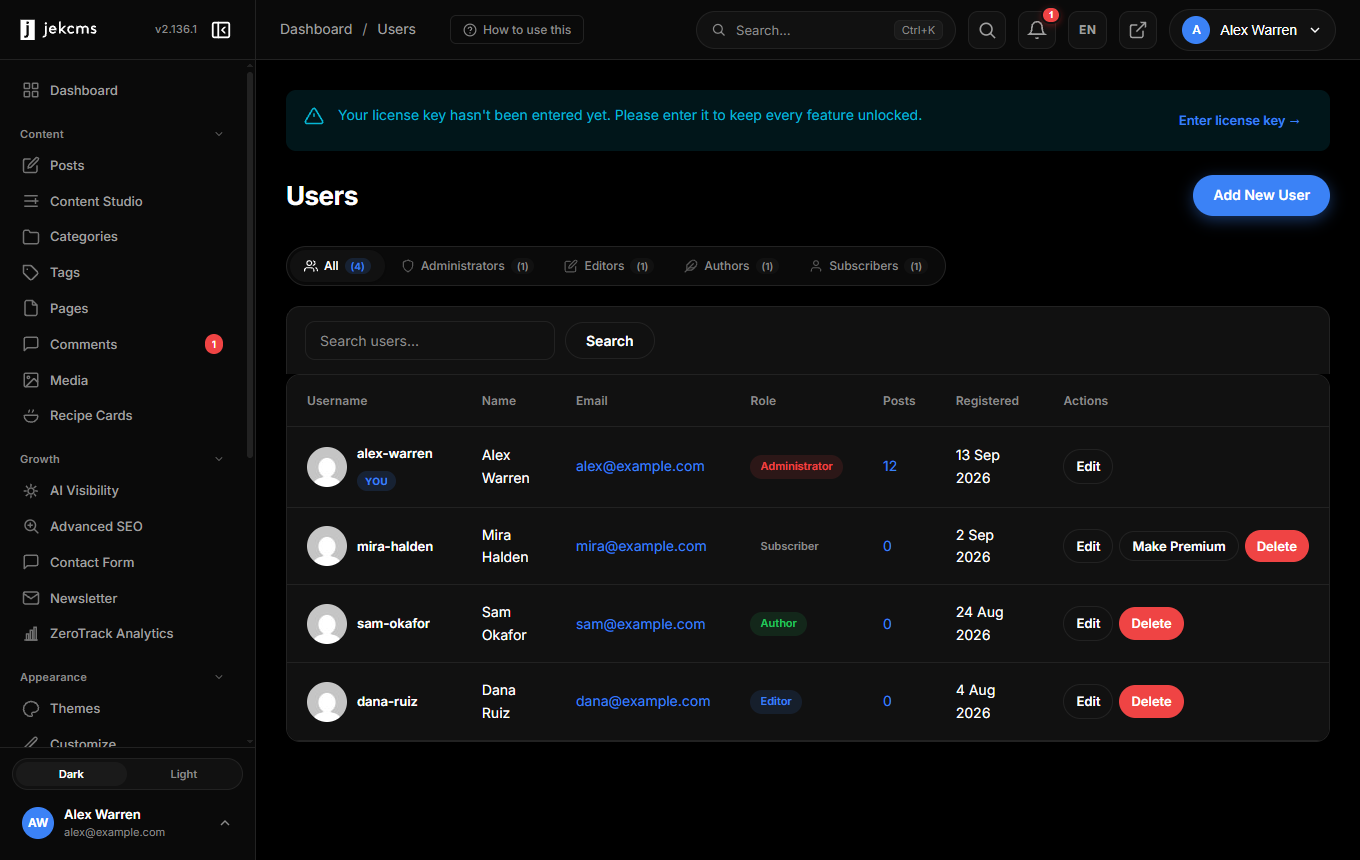
Role tabs across the top with live counts, then each user's username, name, email, role, post count and registration date. Your own account is marked, and jekcms refuses the two actions that would lock you out: you cannot delete yourself, and you cannot remove the last administrator.
A user with posts cannot be deleted outright either - their writing would go with them. Reassign or remove the posts first.
If you run a paid tier, each subscriber row carries a Make Premium action for the cases where payment arrived outside the automatic webhook - a bank transfer, or a payment you took by hand.
Forgotten passwords
The sign-in screen carries a Forgot your password? link. Entering the email address of an account sends a link that is valid for one hour and works only once; opening it lets that person choose a new password without anyone else being involved.
Three details are worth knowing before you rely on it:
- The site has to be able to send email. If sending has not been set up yet, the request screen says so up front rather than letting someone wait for a message that will never arrive. Set it up under Settings → Email.
- Requesting a link tells you nothing about who has an account. The screen shows the same confirmation whether or not the address belongs to a user, so the form cannot be used to find out who is registered here.
- Two-step verification stays on. Resetting a password does not switch off an authenticator, on purpose: recovery must not become the way around a second factor. Someone who has lost both their password and their authenticator needs an administrator, or the break-glass setting in the site configuration.
Setting a new password also signs out the "remember me" sessions on other devices, which is what you want when the reason for the reset is that the account may have been reached by someone else.
Related
- Settings Panel - editorial approval lives under General
- Posts Panel - where pending posts wait for approval