Bulk AI Generation
Plan Many Posts takes a list of titles and turns it into a calendar. You paste the titles, choose a category, decide how thinly to spread them, and jekcms writes one task per title with its own date and time. Fifty titles at two a day becomes twenty-five days of scheduled work instead of a fifty-post dump nobody reads.
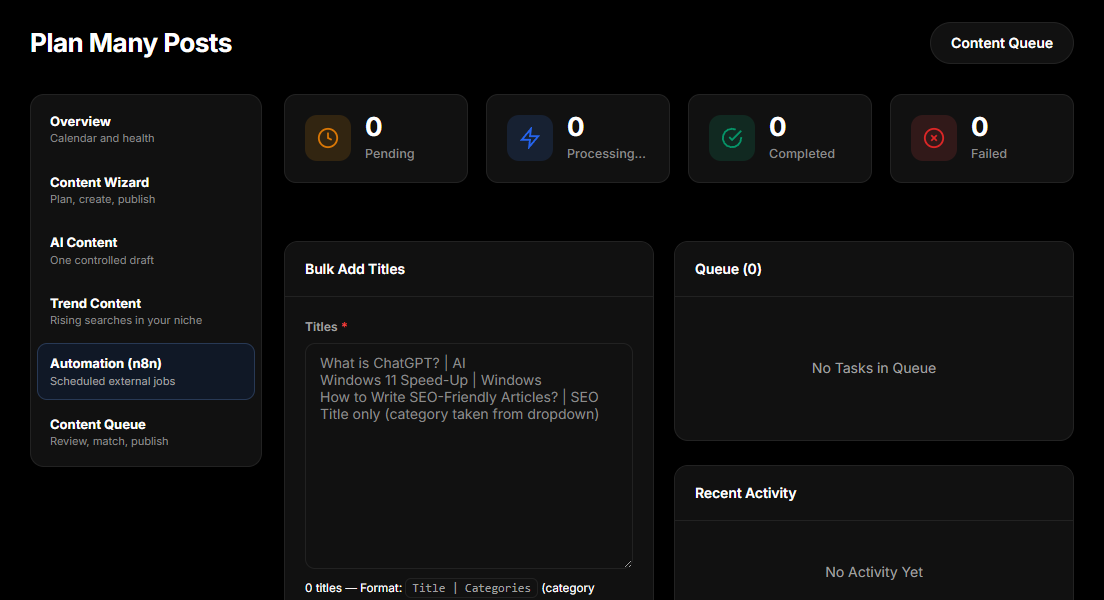
The part people get wrong on the first try is what happens next. Planning a batch does not generate anything. The tasks sit in the queue until a writer picks them up, and the writer is an n8n workflow you run - jekcms hands out the task, your workflow calls the AI provider, and the finished article comes back through the API. The reason for that split is control: the prompt, the persona, the image generation and the model are things you should own, not things buried in a CMS screen.
If you only want one article and do not want to wire anything up, use AI Draft instead. It generates a single post in the browser from a topic and a writing style, using whichever provider you configured, and drops the result into the editor.
Where this lives
Both screens sit under Content Studio in the admin menu. Plan Many Posts (admin/post-panel.php) creates the batch and shows its progress. The Content Queue (admin/content-queue.php) is a different pipeline for drafts that arrive already written - see Content Queue. They share the Content Studio calendar, which is why both appear on it.
You need an AI provider key before any of this does anything; the workflow needs its own provider key too. AI Settings covers that side.
Creating a batch
The title field is one post per line. A plain line uses the category you picked from the dropdown; a line written as Title | Category overrides it by category name, matched case-insensitively and Turkish-safe, so Beslenme and beslenme both resolve.
Spread is either a number of posts per day, from one to twenty, or one of two calendar modes: even days and odd days, each publishing one post on matching days of the month. Within each day, times are picked at random inside the hour window you set (nine in the morning to nine in the evening by default) and then sorted, so a day's posts appear in a plausible order rather than all at the top of the hour.
Submitting writes one row per title into scheduled_tasks with type content_generation, status pending, and a payload carrying the title, the category id, the model you chose and the author the post will be published as. Nothing is sent to any AI provider at this point.
Connecting the writer
Point an n8n workflow at two endpoints. POST /api/v1/webhook/queue-pending hands out the tasks whose time has come and marks them as processing; POST /api/v1/webhook/content-generate sends the finished article back, attaches the featured image and closes the task as completed. queue-fail reports a task your workflow could not finish, so it shows up red instead of silently disappearing.
jekcms ships three ready-made workflows for exactly this. Open Plan Many Posts and scroll to the n8n panel: Content Queue: Persona Writer pulls a task, writes it in a persona voice and publishes with an AI cover image; Researched Production + 3 Images researches the topic first and publishes with a cover plus two in-content images; RSS Content Factory is the odd one out, sourcing from feeds rather than from your queue. Each downloads as JSON, imports into n8n with Import from File, and carries a single node named Ayarlar ("Settings") at the start - your site URL, your jekcms API key, your provider keys, the language and the persona. Everything else is wired. The workflow refuses to run until you have replaced the placeholders, rather than failing halfway with a confusing error.
Tasks stuck in processing for more than thirty minutes are automatically returned to pending the next time the queue is polled, so a workflow that crashes mid-run does not strand its task.
Watching the batch
Plan Many Posts shows four counters - pending, processing, completed, failed - over the upcoming task list and the last ten finished ones. Each failure keeps its error message.
The Content Studio calendar shows the same tasks under the label AI Autopilot, next to content-queue items and scheduled posts, which is the view worth opening when you want to know what is going out this month rather than what is wrong with one task.
Quality control
Every article that arrives through content-generate is published, and passes the content quality gate on the way. If the gate blocks it the API answers 422 with a list of reasons - too short, no H2, duplicate title, missing featured image and so on - the post is not published, and your workflow sees the failure rather than a silent success.
The gate is a floor, not an editor. It catches structural failure; it cannot tell you the article is dull or the facts are invented. If you want a human in the loop, point your workflow's final node at /api/v1/webhook/draft instead: the article lands in Posts as a draft, and nothing is public until someone opens it.
Two habits make the difference between a useful batch and a farm of filler. Test your prompt on one title with AI Draft before planning fifty - same providers, instant result, and it catches language and tone problems for the price of a single call. And spread batches thinly: one to three posts a day reads like a working site to both people and search engines, where a fifty-post day reads like exactly what it is.