Content Queue
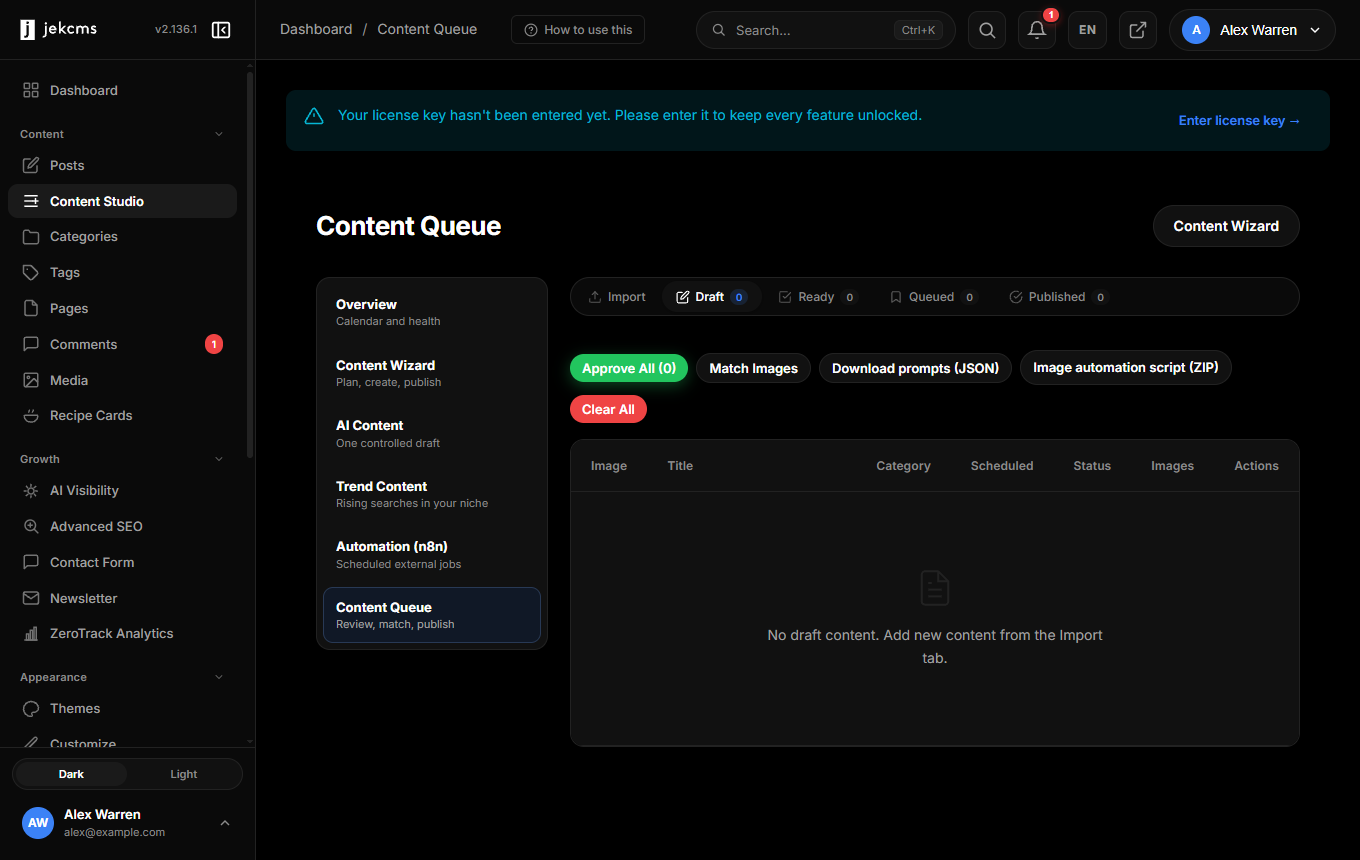
The content queue is a waiting room. Drafts that arrive in bulk land in content_queue rather than going straight into posts, which means a batch import is something you can read, fix and schedule before any of it is public.
Everything that leaves the queue for the live site goes through the same publishing policy as any other channel. The content quality gate runs, the decision is recorded, and the published post carries source = queue in its audit trail. Nothing slips past by arriving in bulk.
Drafts produced in bulk can be inaccurate, repetitive or thin. The queue exists so the last call is yours.
Where items come from
Three intake paths exist, all on the Import tab of the Content Queue screen.
JSON import takes an uploaded file containing an array of items. CSV import takes pasted CSV in the same shape. Both are the practical answer when an external system needs to hand work over, because the REST API creates posts, not queue items - there is no queue endpoint for content_queue. Generate a file and import it.
Google Sheets sync pulls rows from a spreadsheet. It reads the range A1:H1000, treats the first row as column headers and maps them by name, so a sheet with a title column and a few of content, excerpt, category, tags, featured_image, slug, scheduled_date, scheduled_time, meta_title, meta_description works without configuration. Rows without a title are skipped. Each imported row remembers where it came from in source_sheet and source_row_id, and a row that has already been imported is skipped on the next sync rather than duplicated - note that it is skipped, not refreshed, so editing a row in the sheet after import does not change the queue item.
The Sheets path needs an API key and a spreadsheet id in settings (content_queue_api_key, content_queue_spreadsheet_id, and optionally content_queue_sheet_name, which defaults to Sheet1). Until those are present the panel shows the sync card greyed out. Note that this configuration has no form of its own in the current admin - the values have to be written into the settings table directly.
An AI workflow can also write into the queue rather than publishing, which is what makes bulk generation reviewable.
What a queue item holds
| Column | What it is | |---|---| | title, slug, content, excerpt | the draft itself | | category, category_id, tags | taxonomy for the future post | | author_id | who it will be published as | | featured_image, featured_image_url | a local file, or a URL to fetch at publish time | | status | draft, pending, ready, queued, processing, completed, failed | | scheduled_date, scheduled_time | when it should go live | | priority | ordering hint | | source_sheet, source_row_id | provenance, and the duplicate guard | | post_id | set on publish - the link to the live post | | meta_title, meta_description | SEO fields carried into the post | | processed_at, error_message | result of the last publish attempt | | extra_json | free-form payload for anything else the workflow carries |
extra_json is where the interesting things ride. Image plans, per-image generation briefs, and Pinterest copy (pin title, description, tags and a vertical image) travel in there and are converted into post meta at publish time, which is how a pin that was written during generation reaches the social plugin months later.
There is no cost column and no auto-publish rule builder. The table has three columns named pinterest_image, pinterest_pin_id and pinterest_url; they are legacy and nothing reads or writes them.
Working the queue
The Queue tab opens on drafts and filters by status. Open any item to edit every field before it goes anywhere. Approve marks an item ready; Approve all clears a whole batch; Move to Ready does the same for a selection. Reject and Delete drop items, and Clear all empties a status bucket in one go. Publish now sends a single item straight to the live site - the quality gate still runs.
Two batch tools save real time. Match featured images scans the temp upload folder and attaches images by slug: a file named {slug}-img01 becomes an in-content image and {slug}-pinterest becomes the vertical pin asset, matched with Turkish characters folded so ogrenci finds öğrenci. And Reschedule failed re-queues everything that failed, spaced six days apart starting today - useful after a provider had a bad afternoon, though you should match images first.
Publishing an item copies it into posts, links the queue row to the new post through post_id, and writes the audit trail. If the quality gate blocks it, the item is not dropped: it stays in the queue with error_message explaining what failed, so you can fix it and try again.
Scheduling
Rather than publishing everything at once, give the batch a rhythm. Select ready items, open Schedule, and pick a frequency - daily, twice daily, every other day, odd days of the month or even days - a start date, and a daily time window (nine to five by default). jekcms assigns each item a date and a random time inside that window, and moves it to queued.
Due items publish on their own. The engine that does it runs from cron if you have one, from ordinary site traffic if you do not, and once more whenever an admin opens the Content Queue screen - so a due batch is never waiting on a button. Cron Setup explains the difference in precision between those paths.
A working rhythm
Import a batch. Read it, edit what is salvageable, delete the rest - this is the step the whole screen exists for. Match images so nothing publishes bare. Apply a schedule so the batch lands over days instead of minutes. Then watch the failed filter rather than the calendar: anything the gate stopped is sitting there with a reason, and everything else has already gone out carrying source = queue, so you can always tell later where a post came from.