Pinterest Auto-Posting
Pinterest still sends real traffic to long-form visual content - recipes, how-tos, roundups, guides - which is why it is the flagship adapter in the Social & Video plugin rather than an afterthought. Once connected, a published post becomes a pin: title, description, hashtags and a link back to your canonical URL, posted asynchronously so a slow Pinterest response never blocks an editor pressing Save.
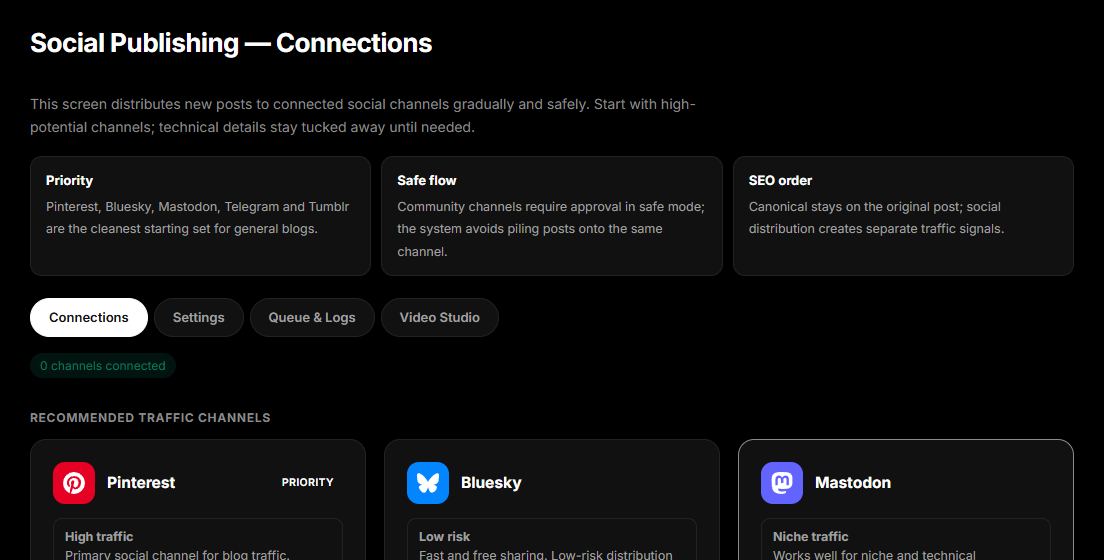
There is one design decision to understand before you set it up, because everything else follows from it: you never pick a board. jekcms matches the post's category name against your board names and pins there. A post in a category called Desserts goes to your Desserts board. This is why the setup below spends more time on boards than on tokens.
Step 1 - Create a Pinterest app
Go to developers.pinterest.com and sign in with the account that owns the boards you want to pin to. Under My apps → Create app, fill in the name, description and website URL - use your jekcms site URL.
Once the app exists, open it and copy the App ID and App Secret. You do not need to generate an access token by hand; jekcms performs the OAuth flow itself and asks Pinterest for boards:read, boards:write, pins:read and pins:write.
Step 2 - Connect from the admin
In the jekcms admin open Social & Video → Connections and find the Pinterest card. Paste the App ID and App Secret, then make the decision that trips most people up: the API mode dropdown.
Pinterest gives new apps sandbox access and grants production access after a review. Sandbox is a separate universe - the pins you create there do not appear on your real boards. jekcms treats anything that is not explicitly production as sandbox, so a connection you set up without touching this dropdown is a sandbox connection, and it will look like it is working while pinning into the void. Switch it to Production once Pinterest has approved your app for Standard access.
Press Connect (OAuth). Pinterest asks you to authorise, you come back, and the card shows a mode chip reading either Sandbox or Production. Tokens are stored encrypted, last thirty days by default, and are refreshed automatically by the plugin's own scheduler before they expire - you should not have to reconnect on a calendar reminder.
One Pinterest account per site. There is no multi-account support.
Step 3 - Make your boards match your categories
This is the actual setup step. Open Pinterest and make sure every category you publish in has a board whose name matches, case aside.
In sandbox mode, jekcms creates a missing board for you, named after the category - convenient while testing. In production it does not, on purpose: silently creating public boards on a real account is not something an automation should do. A post whose category has no matching board fails with "No Pinterest board matches this post's category", which is a clear message but only if you know to look for it.
Your board list is fetched and cached per connection, up to five hundred boards.
Step 4 - Confirm it works before you rely on it
The Pinterest card carries three buttons worth using in order. Test connection checks that the token can read your boards. Diagnose lists every board jekcms can see, which is how you verify a category actually has a match - it is read-only and never creates anything. Send test pushes a real post through the whole pipeline.
For a specific post, connections.php?pdiag=1&post_id=123 prints a plain-text dump of exactly what would be sent: the resolved category, the tags, the pin description, and - most usefully - which image was selected and why.
Turning it on
There is no Pinterest-specific "auto-pin" switch. Two generic settings govern it, both on the plugin's Settings tab: Automatically distribute published content, the master switch for the whole plugin, and the Pinterest checkbox in the platform enable grid. Both are on by default, so a connected account starts pinning as soon as you publish.
A post is queued when it is published, is publicly visible, and resolves to an image. The image comes from the post's Pinterest image field if set, otherwise the featured image. If neither exists, the post is skipped and logged as such - Pinterest without an image is not a pin, and jekcms does not invent one.
Per-post control
The post editor's Featured Image box has a Pinterest image field. Paste a URL there - typically a 2:3 vertical crop that works better as a pin than your landscape cover - and that image is used instead of the featured image. Leave it empty and the featured image is used. Nothing is generated.
That field saves on its own, immediately, rather than with the post form, so it works on a post you are not otherwise editing.
There is no per-post on/off checkbox and no per-post pin text editor in the admin. A workflow pushing content through the API can supply a pin title, description and tags along with the article, and those override the generated text when the pin goes out - see the webhook fields in Webhooks.
What the pin looks like
The description is built from a single template on the Settings tab, shared with every other network. Four placeholders are substituted: {title}, {excerpt}, {url} and {tags}. Nothing else - there is no {category} or {author}.
Then Pinterest-specific rules apply. The title is cut at 100 characters and the description at 500, which are Pinterest's limits. Bare URLs are stripped out of the description - a link in pin text reads as spam to Pinterest and is a fast route to a restricted account; the canonical URL travels in the pin's own link field instead, where it belongs. Up to eight tags are appended as hashtags with non-alphanumeric characters removed, and the description is trimmed to make room for them. The post title is also sent as the pin's alt text.
How the queue paces itself
Pins do not fire at publish time. A queue row is created, and the plugin's scheduler picks it up.
That scheduler runs at the end of any admin or front-end page request, at most once a minute, after the response has been delivered - so it costs the visitor nothing. If you would rather drive it explicitly, the plugin also exposes a cron endpoint at /jek-social/cron/process guarded by a secret, and a CLI entry point at plugins/jek-social/cron/process-queue.php that processes a larger batch. The core cron.php does not process the social queue; this is the plugin's own scheduler.
Pacing is deliberate and layered. A pin is scheduled at least thirty minutes after the previous one, plus a random jitter of up to ten minutes so the pattern does not look mechanical, and smart timing - if enabled - pushes it into Pinterest's evening window. On top of that sit two caps: a global daily limit across all networks, and ten pins per day for Pinterest specifically. A blocked row is deferred ten minutes rather than failed.
When a pin does fail, retryability is decided by the response. A timeout, a 429 or a 5xx is retried with exponential backoff - two minutes, then four, eight, sixteen, thirty-two, capped at six hours, up to six attempts. Everything else is permanent: a missing board, a missing image or a dead token fails immediately, because retrying them changes nothing. A token or authorization error additionally flags the account as needing attention on the Connections screen.
On success the pin id is stored on the queue row, which is how you confirm a pin went out without opening Pinterest.
Watching and fixing
The Queue & Logs tab lists everything pending, on hold, published and failed, with the error message on each failure. From there you can retry one item, retry every failed item at once, delete failures, or approve items sitting on hold if you turned on approval-before-publish.
The failure messages are usually self-explanatory, and the three that account for most of them are worth recognising. No Pinterest board matches this post's category means step 3 is incomplete. No image found means neither a Pinterest image nor a featured image was set. And an authorization failure means the token needs a reconnect - check the Connections card, which will be showing an error state.
The Pinterest feed endpoint
Unrelated to the above, the API exposes POST /api/v1/webhook/pinterest-feed: a read-only JSON list of recently published posts with pin-ready title, description, link and hashtags. It exists for people who pin through their own tooling - Make, n8n, a script - and it does not call Pinterest itself. If you are using the plugin, you do not need it.