Google Console
The Google Console plugin puts Search Console, Analytics and AdSense behind a single Google connection and a single set of tabs, and it takes over the tracking IDs your theme prints in the page head. It is not bundled active - enable it under Admin → Plugins, after which it appears in the sidebar under Growth.
Two things it does are worth knowing up front, because they change what you should expect. The reports are read-only: the plugin asks Google for three read scopes and nothing else, so nothing you do here can change a Search Console property or a GA4 configuration. And the most interesting tab, Insights, is built from history the plugin accumulates itself - it needs cron running to have anything to show.
Connecting
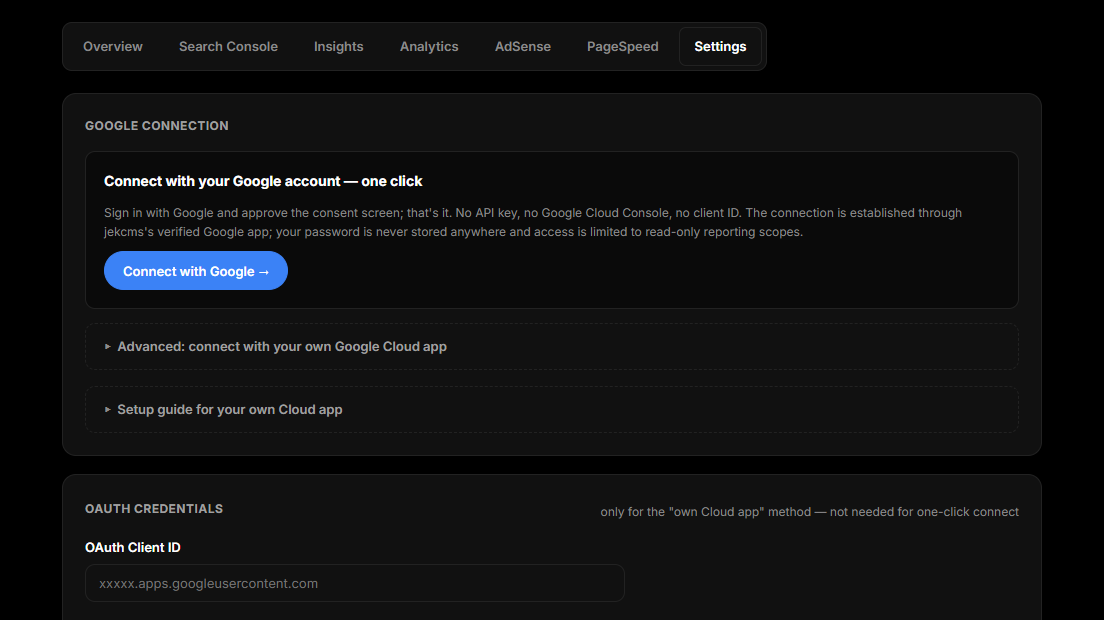
Open Google Console → Settings. The connection card leads with a one-click button that routes through jekcms's own Google app, so you never create a Cloud project. Under it, an Advanced section lets you connect with a Google Cloud app of your own.
One-click has two requirements the button cannot tell you about in advance. Your admin must be reachable over HTTPS - a local or plain-HTTP install cannot use it at all - and your domain must hold an active license. If the service is unavailable, the plugin says so and points you at Advanced rather than failing silently.
Connecting with your own Cloud app
In Google Cloud Console, create a project and enable five APIs under APIs & Services → Library: Google Search Console API, Web Search Indexing API, Google Analytics Data API, Google Analytics Admin API and AdSense Management API. The Admin API is the one people skip; without it the plugin cannot list your GA4 properties and you have to type the numeric property id by hand.
Configure the OAuth consent screen as External, and add the Gmail address you use in Google Cloud under Audience → Test users - that is the fix for the Error 403: access_denied screen.
Then create an OAuth client ID (Web application) and add this authorized redirect URI exactly:
https://YOURSITE/admin/plugins/jek-google/oauth-callback.phpPaste the client ID and secret into the Advanced section and press Connect.
Publish the app before you walk away. While the consent screen sits in Testing, Google revokes the grant every seven days and the plugin starts showing a reconnect banner. OAuth consent screen → PUBLISH APP → In production is the fix, and the banner says so when it appears.
Credentials are stored encrypted. If encryption is not available on the server, the plugin refuses to store the secret rather than writing it in the clear, and tells you why.
Picking your properties
Once connected, the Settings tab offers dropdowns populated from your own account: the Search Console site, the GA4 property and the AdSense account. Pick from the lists rather than typing - the Search Console value in particular has to be in Google's exact form, and the picker writes it correctly (sc-domain: for domain properties, a trailing slash for URL properties).
The Diagnostics card below prints one line per service - Search Console, AdSense, Analytics - each reading either working or the actual error Google returned. When something is misconfigured, that error text is far more useful than any status icon, which is why it is printed verbatim.
The report tabs
All the dated reports offer a 7, 28 or 90 day window, and every window ends yesterday rather than today. That is deliberate: Search Console and GA4 finalise a day at different times, and aligning them on yesterday is the only way the two sets of numbers describe the same period.
Overview is the four-number summary - Search Console clicks and impressions with trend arrows and sparklines, GA4 users, and AdSense earnings for yesterday with the month to date underneath.
Search Console is the deep one. Clicks, impressions, average CTR and average position across the top, then charts for performance, CTR and position. Below that: your top queries and top pages, rising and declining queries compared against the previous period, devices and countries. Two cards earn their place. Opportunity queries filters for the specific shape worth acting on - decent impressions, a position between fourth and twentieth, and a click-through rate under three percent, which is the signature of a page ranking where nobody clicks it. Pages losing traffic does the same in reverse for pages that used to earn clicks and no longer do.
Insights does not call Google at all; it reads the history the plugin stores. Once a day, cron fetches your Search Console data and keeps it, backfilling ninety days on the first run. The report then shows a 180-day trend and four things you cannot see in a live query: pages declining sharply against their own past, striking-distance keywords sitting between position eight and twenty with real impressions, keyword cannibalization where several of your pages compete for one query, and pages rising. Each page row links straight into the editor when it matches a post.
Without cron this tab stays empty. There is a Fetch now button for the impatient, but the point of the tab is the accumulated history. Cron Setup covers the install.
Analytics shows users, sessions, page views and bounce rate, a daily traffic chart, your top pages by path and your traffic channels.
AdSense shows estimated earnings for today, yesterday, month to date, the last seven days and the last thirty, in your account's currency. Earnings only - the plugin does not request impressions, clicks or RPM, so this tab answers "how much" and not "why".
PageSpeed needs no Google connection. It runs PageSpeed Insights against your own site for mobile and desktop in parallel and stores the four category scores along with the lab metrics (FCP, LCP, TBT, CLS, Speed Index) and, where Google has enough real-world data, the field values from CrUX. You can add a PageSpeed API key in Settings if you hit the anonymous rate limit; note that this key is stored as plain configuration rather than in the encrypted secret store, so use a key restricted to the PageSpeed API. The tool only measures your own hostname, by design.
Indexing coverage
The Search Console tab carries an Indexing Coverage scan that walks your published URLs - homepage plus up to two thousand posts and pages, newest first - through Google's URL Inspection API and classifies each one as indexed, not indexed, an error, or not yet checked.
It runs in rounds of five URLs with a short pause between them, because the API is slow and shared hosts have execution limits. Leave the page open and it works through the list; each result is cached for twenty-four hours, so a re-run costs nothing for URLs already checked. Two thousand is not an arbitrary number - it tracks Google's daily inspection quota per property.
There is also a Submit for Indexing action, and you should know its real state before relying on it. Google offers the Indexing API only for job posting and live stream pages, so jekcms ships it switched off, and the OAuth connection does not request the indexing scope at all. Turning the checkbox on is therefore not enough to make it work: Google will refuse the calls. Treat the coverage scan as the useful half of this pair, and get ordinary pages indexed through your sitemap, which jekcms rebuilds automatically.
The tracking snippets
The Frontend Snippet Injection card takes three IDs: a GA4 measurement id (G-…), a Tag Manager container id (GTM-…) and an AdSense publisher id (ca-pub-…). This part needs no Google connection - tick the box, paste the ID, save.
What actually happens is a write-through. The plugin validates each ID against its expected format and copies it into the core site settings; the theme's header then emits the tags. Two consequences follow from that. An ID in the wrong format is silently discarded rather than printed into your pages. And unticking a box clears the core setting, which means this card is the on/off switch for tracking on the whole site, not just for this plugin.
If you set a Tag Manager container, the GA4 gtag snippet is suppressed - you are expected to configure GA4 inside GTM rather than loading it twice. jekcms also emits a preconnect for whichever tag hosts you are using.
When the site's cookie consent banner is enabled, Google Consent Mode v2 is emitted ahead of the tags with every storage type denied by default, and updated to granted once the visitor accepts. The scripts still load; what is gated is storage. If the consent banner is off there is no gate at all.
One thing to plan around: the snippets are emitted for every visitor, including you while logged into the admin. Exclude your own traffic with an internal-traffic filter or IP exclusion in GA4 rather than expecting the site to do it.
The weekly email
Settings has a Weekly Email Summary switch. With it on, a connected site emails a performance digest roughly once a week to the address you give - or the site admin address if you leave it blank.
The digest carries Search Console clicks and impressions with week-over-week arrows, GA4 users and page views, AdSense earnings for the last seven days and month to date, and the five queries that earned the most clicks, in the site's language. It compares the last seven days against the seven before that.
It fires on a 6.5-day interval rather than exactly weekly, so a cron hour that drifts does not skip a week entirely. Like Insights, it depends on cron: the delivery is attempted from a scheduled run, not from page traffic.
Caching, and the refresh button
Every Google call is cached, both to keep the panel fast and to stay inside API quotas. Search Console and Analytics responses hold for thirty minutes, AdSense for an hour, the Settings diagnostics for five minutes, and coverage and PageSpeed results for twenty-four hours. A response that came back as an error is cached for only two minutes, so a transient failure clears itself quickly instead of sticking around.
The refresh control on Overview clears the whole cache. Use it after changing a property target; reaching for it every time a number looks stale mostly just spends quota.
Not in this plugin: Google Preferred Source
If you came looking for the "Prefer us on Google" block - the widget readers use to mark your site as a preferred source in Search - it is a core feature, not part of this plugin, and it is configured in the Theme Customizer under the post settings. You choose whether it appears, whether it renders as Google's official button or a plain link, and where on the post it sits. When cookie consent is enabled, Google's script loads only after the visitor has accepted, and a plain link is shown until then.