Installing a Theme
Themes ship with jekcms. There is no marketplace to browse and no ZIP to upload - the themes you can use are the ones in the product, and new ones arrive the same way core updates do. That is a smaller promise than most CMSs make, and it is the reason theme switching in jekcms is a single click with nothing to rebuild afterwards.
Where themes live
Each theme is a folder under /themes/, and a folder is only a theme if it contains a theme.json:
themes/
  starter/
    theme.json
    functions.php
    templates/
      header.php
      footer.php
      index.php
      single.php
      archive.php
      page.php
    partials/
    sections/
    assets/css/style.css
The folder name is the slug jekcms uses everywhere - in the active-theme setting, in saved customizer values, in asset URLs. It is lowercase, hyphenated and never renamed after the fact, because renaming it orphans every customization stored against it.
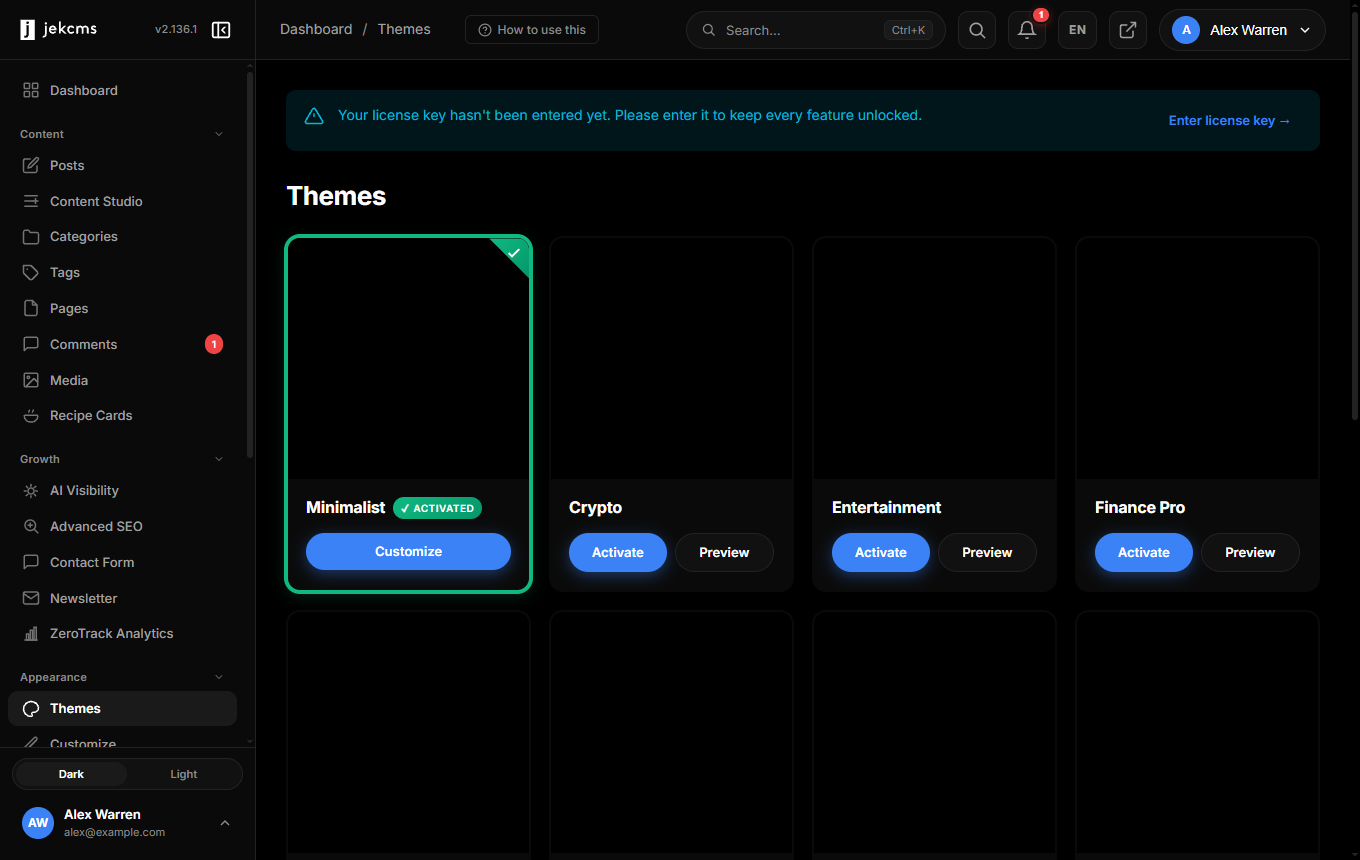
Fifteen theme folders ship on disk. Fourteen are offered on the Themes screen; starter is held back as the built-in fallback rather than presented as a choice, and a theme marked "internal": true in its theme.json stays hidden until it is finished.
New themes and theme updates come through Admin → Updates, which installs them as signed components into /themes/. Dropping a folder into /themes/ by FTP does not add it to the Themes screen: the screen renders from a registry of known theme slugs, so an unregistered folder is skipped even when its theme.json is perfectly valid.
Free edition and paid themes
Four themes are available on a free install: starter, lifestyle, tech and news. They are also the only four included in the free download package.
The rest are gated at activation. A licensed install activates them normally; a free install sees the card with its Activate button disabled and a link to the pricing page, and an activation attempted any other way is refused. Managed installs bypass the check entirely.
The theme customizer is itself a licensed feature. On a free install the Customize screen is not reachable, so what you pick on the Themes screen is what you get.
Activating
Appearance → Themes shows every available theme as a card with a screenshot, the theme's version and an Activate button. Clicking it writes one settings row - active_theme - clears the page cache and sends a purge header to the edge. Nothing is compiled and no files are touched, which is why the change is visible on the next page load.
Two things happen alongside. The outgoing theme's slug and its settings are saved so you can undo, and the incoming theme's templates/index.php and templates/header.php are parsed for syntax errors. A parse failure produces a warning on the Themes screen, not a refusal - if you see that warning, look at the theme before you look at your site.
A theme may ship an activate.php file; if it exists, it runs once at this point. Themes use it to seed menus, widget areas or default pages.
Trying a theme first
Every card also offers a preview. Previewing stores your choice in your admin session, so you see the theme on the live site while every visitor keeps seeing the current one. A strip lets you either activate what you are looking at or close the preview and go back.
Preview is per-session and per-admin: it is not a staging environment, and it does not preview unsaved customizer values - for that, use the live preview inside the customizer.
Going back
The Themes screen carries a rollback link that returns you to the theme you were using before the last switch, together with its saved settings. It is the fastest fix when a switch turns out to have been a mistake.
Switching away from a theme does not erase its customization. Values are stored per theme slug, so activating tech, spending an afternoon in the customizer, moving to news and coming back three months later returns you to exactly the palette, fonts and layout you left behind.
The starter theme
themes/starter/ is the guaranteed render target. It is not offered as a design choice and it is not meant to be one - it exists so that a site with a missing or broken active theme still has something to fall back to, and so that a fresh install renders before anybody has made a decision.
Read it as the reference implementation when you want to know how a jekcms template is put together. Do not edit it in place: an update will overwrite your changes, and there is no supported way to register a renamed copy.
What is not there
Two absences are worth stating plainly, because most CMS documentation implies otherwise. There is no ZIP upload for themes - the only archive the admin accepts is a core package, and it rejects anything that is not one. And there is no delete button: themes are not removed from the Themes screen, and removing a folder by hand only makes sense when the theme is neither active nor the one rollback would return you to.