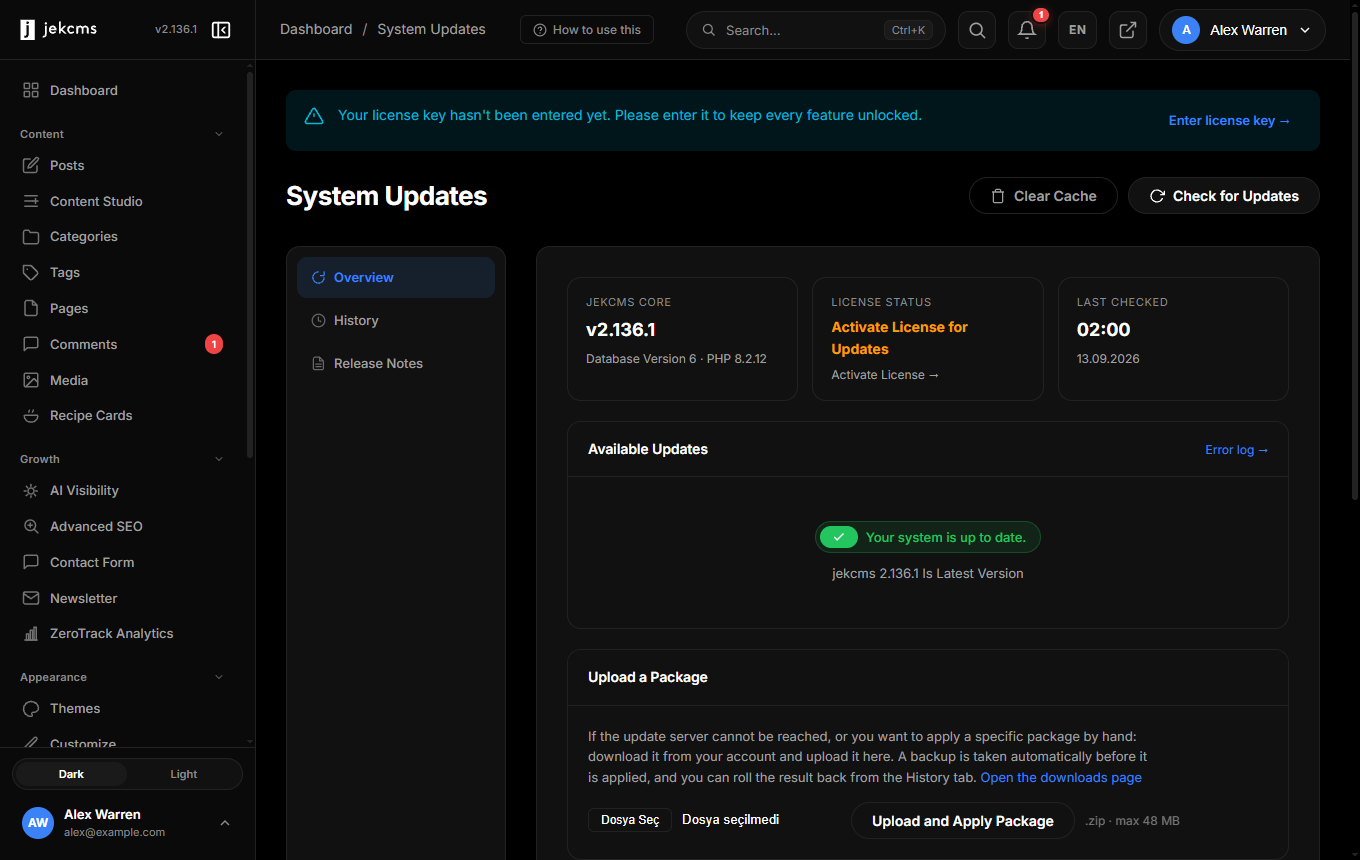
Updates

jekcms ships core, theme, and plugin updates through a single signed channel. The admin panel at admin/updates.php shows what's available, lets you apply it, and keeps five rolling backups so you can roll back if anything goes wrong.

How the update check works

Every jekcms install pings the update server once every six hours (or immediately when you click Check for updates). The flow:

  1. Your site sends its current version, license key, and PHP version to /api/v1/updates/check.php on the jekcms update server
  2. The server compares against version.json (the authoritative manifest of every release) and returns a list of applicable updates
  3. Results are cached in the updates table — the admin dashboard reads from there, so the banner appears instantly without a live request

The check covers three things: the jekcms core, any installed themes from the official marketplace, and any installed plugins. Third-party plugins that point at their own update URL use the same pipeline with their own manifest.

The "Update available" banner

When an update is pending, a yellow banner appears at the top of every admin page. It shows the new version number, release date, and a View details link that opens the release notes in a modal. The banner is dismissible per-user but reappears on the next version.

Click Update now to go straight to admin/updates.php. Click Release notes to read what changed before committing.

Automatic backup before update

Every update runs a pre-update backup automatically. You cannot disable this for core updates — it's there to save you when something goes sideways.

What gets backed up:

  • The full codebase (everything under the install root except storage/cache and storage/logs)
  • A mysqldump of the database
  • The current config/config.php

Backups are stored under storage/backups/update-YYYY-MM-DD-HHMMSS/ and the last five are retained. When a sixth backup is created, the oldest is deleted automatically. If you need longer retention, copy the folder elsewhere before the next update runs.

Rolling back

Go to admin/updates.phpBackups tab. Each row shows timestamp, from-version, to-version, and size. Click Restore on any row and confirm. The restore:

  1. Puts the site into maintenance mode
  2. Restores files from the backup folder
  3. Imports the database dump
  4. Lifts maintenance mode

Expect 30 seconds to two minutes depending on DB size. You stay logged in — the admin session survives the restore.

Manual ZIP upload

If your server can't reach the update server (air-gapped, strict firewall, staging box), download the update ZIP manually from your account dashboard on jekcms.com and upload it via Updates → Upload manually. The uploader runs the exact same verification and backup pipeline as the automatic update — nothing is skipped.

Signed manifest verification

Every update ZIP ships with a manifest.json and a detached signature signed by the jekcms release key. Before a single file is written, jekcms:

  1. Verifies the signature matches the embedded public key
  2. Recomputes SHA-256 hashes for every file in the ZIP and compares to the manifest
  3. Rejects the whole update if anything mismatches

This blocks tampered mirrors. If someone hosts a "free" jekcms update on a pirate site with a backdoor added, the signature check fails and the update refuses to install. You'll see Signature verification failed — refusing to proceed in the log.

Auto vs manual update mode

Under Settings → Updates you choose one of three modes:

  • Manual — Check only, never apply. You click Update now yourself.
  • Security only — Auto-apply releases flagged security: true in the manifest. Everything else waits.
  • Automatic — Auto-apply every update on the nightly cron run.

Production sites with custom code should stay on Manual or Security only. Hobby sites can safely run Automatic.

Update-in-progress lock

When an update starts, jekcms writes storage/locks/update.lock with the PID and timestamp. A second update attempt (from another admin, or a cron run overlapping a manual run) sees the lock and exits immediately with Update already in progress. The lock releases when the update finishes — success or failure.

If an update crashes mid-run and leaves a stale lock, delete storage/locks/update.lock manually and run the update again. The backup from the failed attempt is still usable.

What to do if an update fails

  1. Read the log at storage/logs/update.log — the last entry explains why
  2. Common causes: insufficient disk space, PHP memory limit too low, file permission issues on vendor/ or storage/
  3. If the site is broken, go to admin/updates.php → Backups → Restore the pre-update backup
  4. If you can't reach the admin, restore manually: copy the backup folder back over the install root and mysql < backup.sql
  5. Post the update.log tail to support with your license key

Release notes viewer

Every release in version.json includes structured notes: Added, Changed, Fixed, Security, Breaking. The viewer at Updates → History shows every version your site has ever installed with full notes, searchable. Useful when debugging "when did X behavior change" — find the release that flipped it.

Be the first to know

New features, release notes & CMS guides — a couple of emails a month, no spam.